\

Facebook


วันอังคารที่ 1 ตุลาคม พ.ศ. 2556

[WinForm C#] Basic Keyboard Reader

Almost of any software which have builded for user's comfortable have special shortcut keys, so today i would like to present easy WinForm keys reader.

In Winform c#, which interite from base Form of Windows.system also include reading key method. just create new project call "ReadKeyBoard" and add new main class call "Form1". Then, in properties tab click on Events button to reveal all form's event inside and double click on "KeyDown" event to active usage.


Let's see inside "Form1_KeyDown" method, it accepts two parameter which one is Object and another one is KeyEventArg e. So anytime you press Keyboard and take key up, program should automatically detect on "what key you press" and send it into method with e value. For example, i press "Backspace", i should get valuse as Keys.Back.

For combination keys such as CTRL + C, SHIFT + F4, you should get 2 values while taking inside this method. One modify key and one normal key, so make sure you have check for specific case. Just like combine Ctrl + C = copy :

if (e.Modifiers == Keys.Control && e.KeyCode == Keys.C)
            {
                // Do Copy stuff
            }

For normal key only :

 else  if (e.KeyCode == Keys.Space)
            {
                // Do your stuff
            }

Write other conditions as you want. i post the code example below. Have a nice day with less bug. Thank for interesting.


using System;
using System.Collections.Generic;
using System.ComponentModel;
using System.Data;
using System.Drawing;
using System.Linq;
using System.Text;
using System.Threading.Tasks;
using System.Windows.Forms;

namespace CombineKey
{
    public partial class Form1 : Form
    {
        public Form1()
        {
            InitializeComponent();
        }

        private void Form1_KeyDown(object sender, KeyEventArgs e)
        {
            if (e.Modifiers == Keys.Control && e.KeyCode == Keys.C)
            {
                textBox1.Text = "Control + C";
            }
            else if (e.KeyCode == Keys.Back)
            {
                textBox1.Text = "Back";
            }
            else  if (e.KeyCode == Keys.Space)
            {
                textBox1.Text = "Space Bar";
            }
            else if (e.KeyCode == Keys.F4)
            {
                textBox1.Text = "F4";
            }
            else if (e.KeyCode == Keys.Tab)
            {
                textBox1.Text = "Tab";
            }
            else
            {
                textBox1.Text = "None";
            }
        }
    }
}

วันอาทิตย์ที่ 29 กันยายน พ.ศ. 2556

[WinForm c#] Basic send E-mail with Google Sevice


In this tutorial, I gonna show you how to implement basic WinForm with sending E-mail function. Gmail provide you STM port for sending new e-mail to another mail inbox, so we need Gmail account to access though this example code.

First, you must regist GOOGLE MAIL account to use their mail server service. If you have own hosting mail server, just get the same configuration of server side to apply this tutorial.

Google normally use port 587 for send and recieve fresh e-mail, and you can also use Class SmtpClient, which from System.Net.Mail, to declare nesessery property before start sending method.

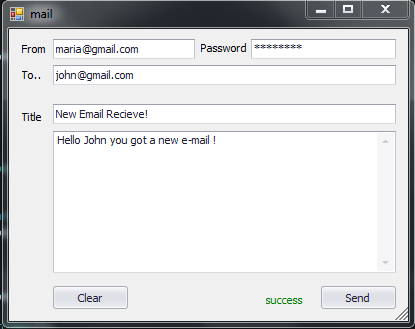
Create new project call "SendMail" and add new Form into solution, Add componets like sample images below. There are including textEdit controls, LabelEdit and button. Put into the same position and give them EventHandler . Into event simpleButton1_Click(), i should start tring send mail by get valus inside controls and put into MailMessage class and begin connection.


 Totally C# send mail method : 

MailMessage mail = new MailMessage();
                SmtpClient SmtpServer = new SmtpClient("smtp.gmail.com");

                mail.From = new MailAddress(textEdit1.Text);
                mail.To.Add(textEdit2.Text);
                mail.Subject = textEdit5.Text;
                mail.Body = memoEdit1.Text;

                SmtpServer.Port = 587;
                SmtpServer.Credentials = new System.Net.NetworkCredential(textEdit1.Text, textEdit3.Text);
                SmtpServer.EnableSsl = true;

                SmtpServer.Send(mail);
 
 
using System;
using System.Collections.Generic;
using System.ComponentModel;
using System.Data;
using System.Drawing;
using System.Linq;
using System.Net.Mail;
using System.Text;
using System.Threading.Tasks;
using System.Windows.Forms;

namespace SendEmail
{
    public partial class mail : Form
    {
        public mail()
        {
            InitializeComponent();
        }

        private void simpleButton1_Click(object sender, EventArgs e)
        {
            if (!CheckEmperty())
            {
                MessageBox.Show("Plesae fill all blank input form");
                return;
            }
            try
            {
                MailMessage mail = new MailMessage();
                SmtpClient SmtpServer = new SmtpClient("smtp.gmail.com");

                mail.From = new MailAddress(textEdit1.Text);
                mail.To.Add(textEdit2.Text);
                mail.Subject = textEdit5.Text;
                mail.Body = memoEdit1.Text;

                SmtpServer.Port = 587;
                SmtpServer.Credentials = new System.Net.NetworkCredential(textEdit1.Text, textEdit3.Text);
                SmtpServer.EnableSsl = true;

                SmtpServer.Send(mail);

                labelControl4.Text = "success";
                labelControl4.Appearance.ForeColor = System.Drawing.Color.Green;
            }
            catch (Exception ex)
            {
                labelControl4.Text = "fail";
                labelControl4.Appearance.ForeColor = System.Drawing.Color.Red;
            }
        }
        private bool CheckEmperty()
        {
            if (textEdit2.Text.Equals(""))
            {
                return false;
            }
            else if(textEdit1.Text.Equals(""))
            {
                return false;
            }
            else if (textEdit3.Text.Equals(""))
            {
                return false;
            }
            else if (textEdit5.Text.Equals(""))
            {
                return false;
            }
            else if (memoEdit1.Text.Equals(""))
            {
                return false;
            }
            
            return true;
        }

        private void simpleButton2_Click(object sender, EventArgs e)
        {
            textEdit1.Text = textEdit2.Text = textEdit3.Text = textEdit5.Text = memoEdit1.Text = "";
            labelControl4.Text = ": Result :";
            labelControl4.Appearance.ForeColor = System.Drawing.Color.Black;
        }
    }
}

วันพฤหัสบดีที่ 26 กันยายน พ.ศ. 2556

[VS2013] TIPเล็กๆ วิธี Break exceptiion ขณะ Runtime

ในโหมด Debug ของ Visual Studio 2012 หลายๆคนคงจะคุ้นเคยกับ Message box ที่จะคอยเด้งขึ้นมาเตือนเมื่อเกิด Error ขึ้นขณะรันโปรแกรม ซึ่งแมสเซจจะแสดงก็ต่อเมื่อเกิด error ที่ไม่สามารถ throw ไปได้ ทำให้โปรแกรมหยุดชะงั้นที่จุดนั้นพอดี

วันนี้จะมาแนะนำ trick การดัดจับ Error + warning message ที่เกิดขึ้นทั้งหมด เพื่อให้ รู้ตำแหน่งที่แท้จริงของจุดเกิด Runtime error ไม่ใช่แสดงค่าว่า "Object reference is not set" (หรือคำอื่นๆ) แล้วก็จากไปเฉยๆ

ไปที่ DEBUG > EXCEPTION...
ในช่อง Break when an exception is: จะมี Name ให้เลือก หาอันที่ชื่อว่า Commom Language Runtime Exception (CLR)ซึ่งข้างในจะมี properties ให้เลือกมากมาย โดยสามารถเลือกตามงานที่จะ dubug ได้เลยครับ เช่น

ถ้าต้องการ Thrown เฉพาะโค๊ด Linq ก็เลือก option : System.Data.Linq


เพียงเท่านี้ครับ error หรือ warning ทั้งหมดจะขึ้นแจ้งตื่นเราก่อน ที่จะข้ามไป โดยระบุบรรทัดที่เกิดความผิดพลาดขึ้น หรือในทางกลับกันถ้าใครที่รำคาญพวก message เหล่านี้ ก็สามารถติก thrown ออกไปได้เลย ก็จะไม่มีข้อความมายุ่งหรือกวนใจอีก

วันศุกร์ที่ 13 กันยายน พ.ศ. 2556

[TeamViewer] วิธีการ Remote Control เครื่องคอมในวงแลนเดียวกัน

วิธีในการ connect เครื่องคอมของเพื่อนที่อยู่ในวงแลนเดียวกัน (Local area Network Connection) ผ่านโปรแกรม TeamViewer มีดังนี้ครับ

1. ในหน้าต่างหลักของตัวโปรแกรม คลิก Extras > Options เพื่อเข้าหน้าต่างออฟชั่น


2. ในแทป General หาบรรทัด Connection in local network (via IP address)


3. เลือก Incomming Lan connection เป็น accept เพื่ออนุญาติให้เชื่อมต่อจาก Lan ได้
4. ใช้ IP address ของเครื่องเป็น UserName และ Password ที่โปรแกรม Gen ขึ้นมาให้ในการ Login
5. ที่ status bar จะแสดง Connecting.. แสดงว่าเครื่องกำลังพยายามคอนเน็กอยู่และ Connected เมื่อคอนเน็กอีกเครื่องได้สมบูรณ์แล้ว ส่วนค่า ip address ของอีกเครื่องก็หาได้จาก YourID ของเพื่อนหรือจะรันคำสั่ง ipconfig ใน cmd ก็ได้เช่นกันครับ

โปรแกรมที่โปรแกรมเมอร์ขาดไม่ได้ก็คือ TeamViewer เพราะใช้งานง่ายและเร็วในการรีโมตเครื่องอีกทั้งยังมีคุณสมบัติเรื่องความปลอดภัยในระบบพิสูจน์ตัวตน โดยพาสเวิร์ดที่เจนมาให้นั้น สามารถแก้ไขได้ตลอดเวลา อีกทั้งโปรแกรมนี้ยังใช้กันมากอันดับต้นๆในการควบคุมเครื่องคอมพิวเตอร์รวมไปถึงการส่งต่อไฟล์ (file transfer) จากระยะไกล

วันพฤหัสบดีที่ 12 กันยายน พ.ศ. 2556

[WinForm c#] เบาๆกับโปรแกรม test SQL Connection อย่างง่าย


วันนี้ว่างๆ กับวันศุกร์ยมๆ (บรรยากาศเงียบๆ) ทดลองทำโปรแกรม ทดสอบคอนเน็คชั่นด้วย sql server 2008 r2 เพื่อตรวจสอบ connection string ว่าถูกต้องไหมก่อนจะใช้ดึงข้อมูลจากเบสต่อไป แต่ว่าการเทสคอนเน็กชั่นนั้น เราจะเทสแค่ทดสอบเชื่อมต่อกับ Host เท่านั้นว่ามีการตอบกลับมาไหม ไม่ได้เชื่อมต่อ database หรือ table อันไหนเลย

ดังนั้น Connection string ที่ใช้ก็คือ อักษรด้านล่างนี้เลยครับ
Connect Timeout=10;Pooling=false;Integrated Security=sspi;server=(local)
โดยเปลี่ยนคำว่า (local) ที่ท้ายของประโยคเป็น Host Name อื่นๆได้เช่น Url หรือ ip address ได้ แต่ผมไม่ได้ทดลองกับโฮสอื่นๆนะครับ แต่กับ (local) เทสได้แน่นอน แต่ผ่าน URL ลองแล้วมีปัญหา >> เดี๋ยวศึกษาเพิ่มเติมต่อไปเรื่อยๆละกัน

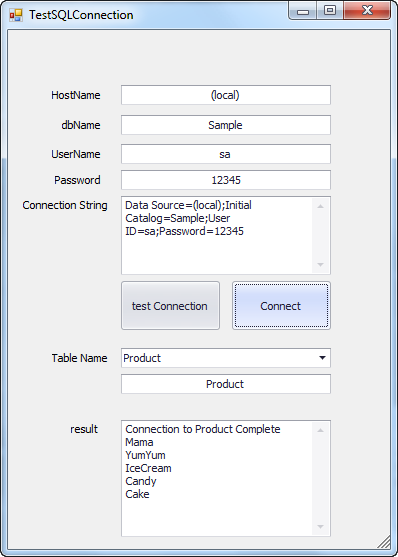
ต่อไปก็เริ่มต้นการคอนเน็คจริงๆสักที เริ่มต้นจากตรวจสอบข้อมูลที่กรอกลงไปทั้งหมดว่าถูกต้องแล้วหรือยัง ฟิลล์ที่จำเป็นคือ
Hostname, Username, Password, Database, Table

โปรแกรมอันนี้ถ้า test connect สำเร็จเเล้ว จะตั้งค่า default ของยูสเซอร์และพาสเวิร์ดให้อัตโนมัติ ถ้าไม่ได้เซ็ตตามค่าที่กำหนดไว้ก็แก้ไขให้ตรงด้วยนะครับ และนอกจากนี้จะทำการค้นหาตารางทั้งหมดที่อยู่ใน database ลูกนั้น เพื่อนำไปใส่ให้กับ combobox ตารางข้างล่าง ซึ่งคิวรี่ข้างในคือ

string query = "SELECT * FROM [dbo].[" + textTable.Text + "]";

โดยต้องกำหนดค่า table ด้วยนะครับไม่งั้นกด connect ยังไงก็พัง แต่ถ้าคอนเน็กสำเร็จ จะแสดงข้อมูลบน column ทั้งหมดในตารางออกมาที่ช่องผลลัพนะครับ เอาเป็นว่าวันนี้มันยมแท้ ขี้เกียจพิมพ์ต่อละ เอาโค๊ดไปแปะแล้วจัด control ต่างๆให้ต้องกับรูป design เป็นอันเสร็จสิ้นแล้วครับ


Code สมบูรณ์ ข้างล่างนี้ครับ

using System;
using System.Collections.Generic;
using System.ComponentModel;
using System.Data;
using System.Drawing;
using System.Linq;
using System.Text;
using System.Threading.Tasks;
using System.Windows.Forms;
using System.Data.SqlClient;
namespace ConsoleSqlConnect
{
    public partial class TestSQLConnection : Form
    {
        public TestSQLConnection()
        {
            InitializeComponent();
        }

        private void TestSQLConnection_Load(object sender, EventArgs e)
        {
            textHostName.Text = "(local)"; // set default for connection string [sql server]
            textdbName.Text = "Sample"; // set default 
            progressPanel1.Hide();
        }
        private void simpleButton1_Click(object sender, EventArgs e)
        {
            //test Connection
            progressPanel1.Show();
            ComboBoxTable.Properties.Items.Clear();
            memoResult.EditValue = string.Empty;
            string con = "Connect Timeout=10;Pooling=false;Integrated Security=sspi;server="+textHostName.EditValue;
            memoEdit1.Text = con;
            using (SqlConnection sqlconn = new SqlConnection(con))
            {
                try
                {
                    sqlconn.Open();
                    memoResult.EditValue = "Test Connect Complete"+System.Environment.NewLine+"Choose Database";
                    string query = "USE Sample SELECT * FROM sys.Tables";
                    SqlCommand cmd = new SqlCommand(query, sqlconn);
                    cmd.CommandType = CommandType.Text;
                    SqlDataReader read = cmd.ExecuteReader();
                    if (read.HasRows)
                    {
                        int num = -1;
                        while (read.Read())
                        {
                            ComboBoxTable.Properties.Items.Add(new DevExpress.XtraEditors.Controls.ImageComboBoxItem(read[0].ToString(), read[0].ToString(), num));
                            num++;
                        }
                        ComboBoxTable.EditValue = ComboBoxTable.Properties.Items[0].Value.ToString();
                        textUserName.Text = "sa"; // set default 
                        textPassword.Text = "12345"; // set default 
                    }
                    sqlconn.Close();
                }
                catch (SqlException ex)
                {
                    memoResult.EditValue = "Test Connect Fail";
                }
            }
            progressPanel1.Hide();
        }

        private void simpleButton2_Click(object sender, EventArgs e)
        {
            //connect Database
            progressPanel1.Show();
            string strConnect = "Data Source=" + textHostName.Text + ";Initial Catalog=" + textdbName.Text + ";User ID=" + textUserName.Text + ";Password=" + textPassword.Text;
            memoEdit1.Text = strConnect;
            using (SqlConnection sqlconn = new SqlConnection(strConnect))
            {
                try
                {
                    sqlconn.Open();
                    memoResult.EditValue = "Connection to " + ComboBoxTable.EditValue + " Complete" + Environment.NewLine;
                    string query = "SELECT * FROM [dbo].[" + textTable.Text + "]";
                    SqlCommand cmd = new SqlCommand(query, sqlconn);
                    cmd.CommandType = CommandType.Text;
                    SqlDataReader read = cmd.ExecuteReader();
                    if (read.HasRows)
                    {
                        while (read.Read())
                        {
                            memoResult.EditValue += read[1].ToString()+Environment.NewLine;
                        }
                         
                    }
                    sqlconn.Close();
                }
                catch (SqlException ex)
                {
                    memoResult.EditValue = "Connection Fail"+ex;
                }
            }
            progressPanel1.Hide();
        }

        private string GenStandardConnectionString()
        {
            //syntax : Server=myServerAddress;Database=myDataBase;User Id=myUsername;Password=myPassword;
            return "Server = " + textHostName.Text + "; Database = " + textdbName.Text + "; User Id = "+textUserName.Text+"; Password = "+textPassword.Text+";";
        }

        private void ComboBoxTable_EditValueChanged(object sender, EventArgs e)
        {
            textTable.Text = ComboBoxTable.Text;
        }
    }
}
ปล. ใช้ DevExpress 12 เป็นตัว design หน้าจอนะครับ Control ต่างๆก็จะ reference ด้วย Dev Express ถ้าใครใช้ Control เจ้าอื่นก็จัดให้ตรงด้วยนะครับ
วิธีใช้งาน
1 กด test Connection ถ้าผ่านจะขึ้น "Test Connect Complete"
2 เลือก Database ที่จะ connect
3 กด Connect เพื่อเชื่อมต่อ database
4 ตรง result จะเเสดงข้อมูลจากตารางที่เชื่อมต่อสำเร็จ

อ่านความรู้อื่นๆ [2weektrain2014]

วันพุธที่ 11 กันยายน พ.ศ. 2556

อยากให้ชีวิตง่ายขึ้นต้องใช้ Store Procedure [WinForm c# + SQL Server]

คราวที่แล้วผม Blog เกี่ยวกับการติดต่อฐานข้อมูลด้วย SQLConnection ไปแล้ว คราวนี้เพิ่มความเก๋ไปอีกนิดหน่อยด้วยการเรียกใช้คำสั่ง SQL ด้วย Store Procedure ที่สร้างไปในดาต้าเบส โดยตัวอย่างนี้จะสร้างโปรแกรมค้นหาข้อมูลผู้ใช้งาน(ยูสเซอร์)อย่างง่ายๆ >> คำถามคือใช้แล้วชีวิตดียังไง?


คำตอบคือ แทนที่เราจะเขียนโค๊ด sql ซ้ำๆคำสั่งเดิมๆที่หน้า form ของเรา น่าจะมีวิธีที่สามารถเรียกใช้งาน query ทันทีได้เลยโดยไม่ต้องมาเริ่มต้นเขียนคิวรี่ "SELECT * FROM..." ใหม่ทุกครั้งไป นั้นแหละครับเรียกว่า store procedure ซึ่งคำสั้งเหล่านี้เราจะเขียนเตรียมไว้ก่อนที่ดาต้าเบสของเรา แล้วตั้งชื่อมันไว้ พอจะใช้งานแต่ละทีก็เลือกตามชื่อแล้วส่งตัวแปรที่จำเป็นไปให้ จากนั้นนั่งรอเอ็กซิคิวผลลัพธ์ได้เลยครับ

วิธีการสร้าง store procedure บน SQL Server 2008 R2
เข้าไปที่เบสปัจจุบัน แล้วเลือกโฟลเดอร์  Programability > Store procedures จากนั้นคลิกขวาเลือเมนู New Store Procedure.. เพื่อเพิ่มสโตร์โพซิเยอร์ตัวใหม่เข้าไป แล้วเซ็ตค่าตามรูปเลยครับ (อย่าลืมเปลี่ยนค่าที่อยู่ในกรอบสีแดงให้ตรงกับที่อยู่ในเบสของคุณด้วย)


เตรียมสิ่งต่อไปนี้ก่อน

สร้าง Databaseไว้ ชื่อว่า Sample โดยกำหนดให้มีตาราง User แล้ว add ข้อมูลไว้สัก 2-3 บรรทัดนะครับ
สร้าง Windows Form Application ขึ้นมา ตั้งชื่อว่า SearchApplication แล้วจัดหน้าจอให้ได้แบบด้านล่างนี้เลยครับ โดยเราจะรับข้อมูลชื่อ User จาก textEdit ด้านบนสุดแล้วเมื่อกดปุ่ม search โปรแกรมจะวิ่งไปค้นหาข้อมูลผ่าน store procedure ที่เราสร้างเอาไว้ แล้วแสดงค่าผลลัพธืตรงกรอบ result ที่เป็น label edit
สร้าง store procedures ขึ้นมาใหม่


ในโค๊ด อธิบายนิดหน่อย
การเพิ่ม parameter นั้นมีวธีการคือ cmd.Parameters.Add(new SqlParameter("@strName", text));
โดย @strName เป็นชื่อ store ที่อยู่ในดาต้าเบส ซึ่งเราต้องส่งไปให้ถูกตัวด้วย
text เป็นค่าของตัวแปรที่เราจะส่งไป >> อย่าลืมว่าใน c# และ SQL Server ก็มี FileType เช่นกัน ถ้า Map ไม่ตรงก็จะ error เช่น map stringในc# to intในSQLServer แบบนี้ไม่ได้นะครับ เพราะจะไม่ขึ้น error ตอน complie แต่พังแน่ๆตอน run
จากนั้นเพิ่ม Command Type ให้ SQL รู้จักด้วยว่า "Connection ต่อไปนี้คือ store" ด้วยการเซ็ต cmd.CommandType = CommandType.StoredProcedure; เพิ่มเข้าไป >> นอกจากนี้ก็เหมือนกัน SQLConnection โค๊ดเดิมทุกประการ


โค๊ดสมบูรณ์ด้านล่างนี้ครับ
using System;
using System.Collections.Generic;
using System.ComponentModel;
using System.Data;
using System.Drawing;
using System.Linq;
using System.Text;
using System.Threading.Tasks;
using System.Windows.Forms;
using System.Data.SqlClient;

namespace ConsoleSqlConnect
{
    public partial class Search : Form
    {
        public Search()
        {
            InitializeComponent();
            labelControl1.Text = "";
        }
        string text = string.Empty;
        SqlConnection sqlConn = null;
        private void Search_Load(object sender, EventArgs e)
        {
            string ConnectionString = GetConnectionString();
            sqlConn = new SqlConnection(ConnectionString);
            
        }
        private void simpleButton1_Click(object sender, EventArgs e)
        {
            labelControl1.Text = "";
            text = textEdit1.EditValue.ToString();
            try
            {
                sqlConn.Open();
                using (SqlCommand cmd = new SqlCommand("SearchUserName", sqlConn))
                {

                    #region sql
                    cmd.CommandType = CommandType.StoredProcedure;
                    cmd.Parameters.Add(new SqlParameter("@strName", text));
                    SqlDataReader result = cmd.ExecuteReader();
                    if(result != null)
                    {
                    while (result.Read())
                    {
                        labelControl1.Text = " Item Found >> " + System.Environment.NewLine + 
                            "\tUserName : " + result[1] + System.Environment.NewLine + "\tPassword : " + result[2];
                    }
                    }
                    else{
                    }
                    #endregion
                }
                sqlConn.Close();
            }
            catch (SqlException ex)
            {
                MessageBox.Show("Error : " + ex);
            }

        }
        private static string GetConnectionString()
        {
            string strConnect = "";

            string localhost = "(local)";
            string userName = "sa";
            string Password = "12345";
            string Catalog = "Sample";

            strConnect = "Data Source=" + localhost + ";Initial Catalog=" + Catalog + ";User ID=" + userName + ";Password=" + Password + "";
            return strConnect;
        }
    }
}

อยากเปลี่ยน query เป็นแบบอื่นก็แก้ไขในฟิลล์ BEGIN ได้เลยครับ หรืออยากเพิ่มคำสั่งอื่นๆก็สร้างสโตรมาใหม่ แล้วเพิ่มตัวแปรเข้าไปก็ได้ จัดเป็นหมวดหมู่คำสั่ง select alter delete ให้เป็นระเบียบ

วันพุธที่ 4 กันยายน พ.ศ. 2556

[โปรแกรม searchหาชื่อสินค้า] SQLite บน C# เอาไว้อ่านไฟล์ .db ใน WinForm มันง่ายมั่กๆ


วันก่อนผมเขียนเกี่ยวกับการสร้าง app ดึงข้อมูลจากฐานข้อมูล SQL Server 2008 r2 ไปแล้วซึ่งเขียนง่ายไม่ซับซ้อนแล้ว ผมว่ายังมีง่ายกว่านั้น แต่คราวนี้ผมต้องการดึง table จากไฟล์นามสกุล .db ลูกหนึ่งซึ่งค้นพี่ gooไปๆมาๆก็มาลงที่ SQLite {O_O} เอ๊ะนี้มีใช้เฉพาะเว็บไม่ใช่หรือ สรุปผู้พัฒนาเค้าสร้าง libary สำหรับใช้บน Win และ android มาด้วยซึ่งสะดวกเอามากๆ

sqlite เหมาะกับโปรแกรมที่ run แบบ stand alone และที่สำคัญ "ฟรี" โดยสามารถดาว์นโหลดไลบราลี่มาใช้งานได้ โดยการใช้งาน sqlite บน c# ก็ไม่ได้ใช้ code ที่สลับซับซ้อนเพราะ syntax คล้ายๆกับ sqlconnection นั่นแหละ


มาเริ่มกันเลยครับ Download libary .dll ตัวล่าสุดจาก Offical website ของ SQLite เค้าลงมา เลือกให้ถูกด้วยนะครับว่า จะเป็นแบบ 64 bit หรือ 32 bit หรือจะโหลดตัว install มาติดตั้งก็ได้ครับ ง่ายดี

หลังจากนั้น Install เลยครับ แล้ว add reference ให้ project ของเราซะ ตัวที่ต้องใช้งานมี
System.Data.SqlClient;
System.Data.SQLite;

เท่านี้เครื่องเราก็พร้อมใช้งานแล้วครับ ลุยขั้นตอนต่อไปเลย
เรื่อง connect string ศึกษาเพิ่มเติมได้ที่ website นี้ครับ http://www.connectionstrings.com/sqlite/ ซึ่งเค้ารวบรวม connection แบบต่างๆเอาไว้มีออฟชั่นเยอะแยะมากมาย แต่ผมขอเลือกแบบง่ายที่สุดก็เเล้วกัน

*หมายเหตุ เครื่องคอมผม ใช้windows 7 64 bit แต่เจอ error นี้เข้าไปหลังจากพยายามโหลด Libary ชื่อ SQLite.Interop.dll ซึ่งไปค้นหาทางแก้มา ได้ความว่าเราต้อง Prefer เป็น 64bit ถึงจะโหลดได้ >> ซึ่งต้องไป config เพิ่มที่ไฟล์ project (*.csproj) file ซึ่งคลิกขวา edit as EditPlus ได้เลยครับ แล้วเพิ่ม <Prefer32Bit>false</Prefer32Bit> เข้าไป ต่อท้ายใน tag <PropertyGroup>


แต่ถ้าไม่เจอปัญหานี้ก็รอดตัวไปครับ


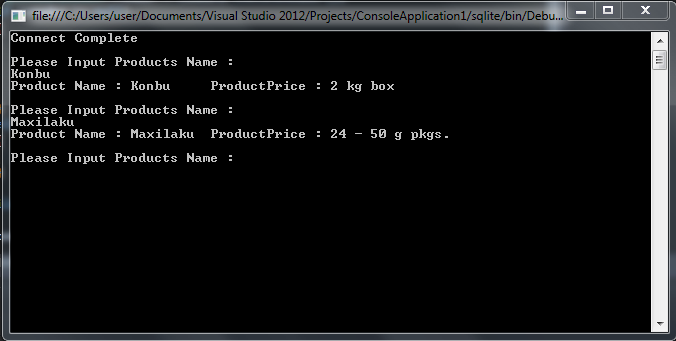
มาลุยโค๊ดกันเลยครับ >> ลองโค๊ดนี้กับการอ่านไฟล์ .db สักตัวนึง ถ้าใน Console Connect Complete ออกมาก็แสดงว่าเรา Connect ฐานข้อมูลสำเร็จแล้วครับ เพื่อทดลองดึงข้อมูล งั้นก็เอาฐานข้อมูลที่ sqlite แถมมาให้เลยละกัน [code ข้างล่างนี้]
using System.Text;

using System.Threading.Tasks;

using System.Data.SQLite;

namespace sqlite

{

    class MainClass

    {

        public static void Main(string[] args)

        {

            string dbfile = "C:\\northwindEF.db";

            string connStr = "Data Source=" + dbfile + ";Version=3;Synchronous=Off;UTF8Encoding=True;";

            SQLiteConnection sqlConn = null;

            sqlConn = new SQLiteConnection(connStr);

            try

            {

                sqlConn.Open();

                Console.WriteLine("Connect Complete, Please Input Product Name : ");

                Console.ReadLine();

            }

            catch (Exception ex)

            {

                Console.WriteLine("Error" + ex);

                Console.ReadLine();

            }

        }

    }

}


 หลังจากนั่นก็จัด query บ้านๆ ไปเลยครับ โค๊ด sql select ธรรมดาที่เอาไว้ search หาข้อมูลที่เรากรอกลงไปนั้นก็คือคิวรี่ข้างล่างนี้
string query = "SELECT ProductName, QuantityPerUnit FROM Products WHERE ProductName like '" + strInput+"'";

วันนี้ขอโปรแกรมง่ายๆก่อนละกัน คราวหลังถ้ามีเวลายาวๆ จะเขียนตัวอย่างให้ละเอียดมากกว่านี้นะครับ เอาพอเป็นแนวละกัน SQLite เป็นไลบราลี่ฟรีสามารดาว์นโหลดผ่านหน้าเว็บเค้า แล้วยังมีการออกอัพเดตใหม่ๆตลอดเวลา บายครับ

[Complete Code Example] สรุปตัวอย่างโค๊ดที่ใช้ในโปรแกรม C# sqlite Connect
using System;

using System.Collections.Generic;

using System.Linq;

using System.Text;

using System.Threading.Tasks;

using System.Data.SQLite;


namespace sqlite

{

    class MainClass

    {

        public static void Main(string[] args)

        {

            string dbfile = "C:\\northwindEF.db";

            string connStr = "Data Source=" + dbfile + ";Version=3;Synchronous=Off;UTF8Encoding=True;";


            SQLiteConnection sqlConn = null;

            sqlConn = new SQLiteConnection(connStr);


            try

            {

                sqlConn.Open();

                Console.WriteLine("Connect Complete");

                do

                {

                    Console.WriteLine("\nPlease Input Products Name : ");

                    string strInput = Console.ReadLine();


                    string query = "SELECT ProductName, QuantityPerUnit FROM Products WHERE ProductName like '" + strInput+"'";

                    SQLiteCommand command = new SQLiteCommand(query, sqlConn);

                    SQLiteDataReader reader = command.ExecuteReader();

                    if (reader != null)

                    {

                        while (reader.Read())

                        {

                            Console.WriteLine("Product Name : " + reader[0] + "\t ProductPrice : " + reader[1]);

                        }

                    }

                    else

                    {

                        Console.WriteLine("No Product");

                    }


                } while (true);


                sqlConn.Close();

            }

            catch (Exception ex)

            {

                Console.WriteLine("Error" + ex);

                Console.ReadLine();

            }

        }

    }

}

เป็น Console Application นะครับแต่ก็สามารถดัดแปลงให้เสดงเป็น UI สวยๆ ได้แค่เอาข้อมูลไปใสในกริดวิวของ Winform ที่เราเตรียมเอาไว้แสดงผล

May be like this posts